Almost any photo can be nudged a little better, and some can be rescued outright. AI enhancement tools promise sharper detail, less noise, bigger prints, and new life for faded family snapshots. The catch is that they vary wildly in quality, control, price, and honesty about what they can really do.
This guide compares the tools that hold up in real use. We’ll keep it practical: what each one is genuinely good at, where it disappoints, what it costs, and which one fits your situation, whether you’re reviving a shoebox of old prints, finishing wedding galleries, or wiring enhancement into your own app.
What AI photo enhancement actually does
“Enhancement” is an umbrella term. Most tools mix several of these jobs:
• Upscaling (super-resolution): increases pixel dimensions and invents plausible detail so you can print big or crop hard.
• Denoising: removes grain and color speckle from high-ISO or low-light shots while trying to keep texture.
• Sharpening and deblur: recovers apparent focus and reduces motion blur, within limits.
• Restoration: repairs scratches, tears, dust, and fading on old photos, often alongside colorization.
• Face recovery: rebuilds blurry or low-res faces, the most impressive feature, and the riskiest.
• Color and light: auto white balance, exposure, tone, and relighting.
The one thing to understand first
AI does not “recover” detail that was never recorded. It generates new, believable detail from patterns it learned during training.
• That’s wonderful for a soft landscape or a slightly noisy portrait.
• It’s a problem when accuracy matters: a reconstructed face can look great yet subtly not be the person, and invented text or numbers can be flat-out wrong.
Rule of thumb: enhancement is interpretation, not forensics. Keep your originals.
How we chose these tools
• Real-world results over marketing claims.
• A spread of needs: pro desktop, all-in-one workflow, one-tap mobile, creative editing, and budget/API.
• Honest trade-offs: every tool here has limits, and we name them.
• A reminder: AI tools and prices change fast, so figures below are approximate as of mid-2026.
The tools at a glance
A fast overview before the deep dives. “API / automation” matters most if you’re a developer or processing photos in bulk.
| Tool | Best for | Platform | Pricing (approx.) | API / automation |
|---|---|---|---|---|
| Topaz Photo AI | Top-tier denoise, sharpen and upscale | Windows, macOS (desktop) | ~$199 one-time (1 yr updates); sub/credits too | Limited (desktop-first) |
| Adobe Lightroom + Photoshop | Enhancement inside a full pro workflow | Win, macOS, iOS, web | Subscription from ~$10/mo | Partial (SDKs / Firefly API) |
| Remini | One-tap fixes for faces & old photos | iOS, Android, web | Free (watermark); paid from ~$7/wk | No public API |
| Luminar Neo | Creative landscape/portrait edits, buy once | Win, macOS, mobile | One-time ~$99 to $159; sub option | No |
| Hotpot AI | Budget, variety & bulk/automation | Browser (any device) | Free tier; credits ~$12/1k; ~$0.02 to $0.25/img | Yes (REST API + self-host) |
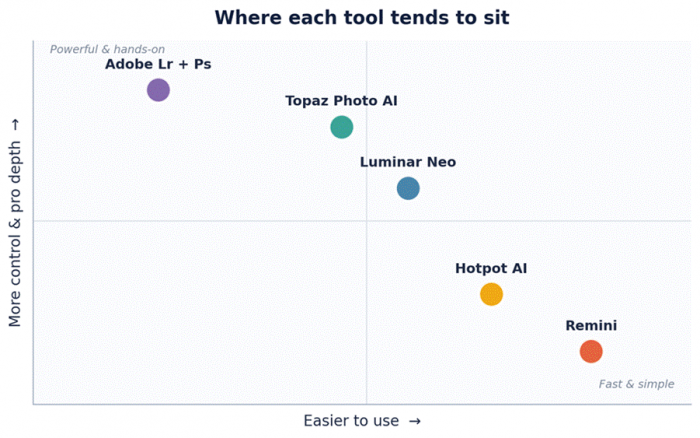
Editorial positioning, a subjective read on the typical experience, not a measured benchmark.
The five tools, in depth
Topaz Photo AI: the quality benchmark
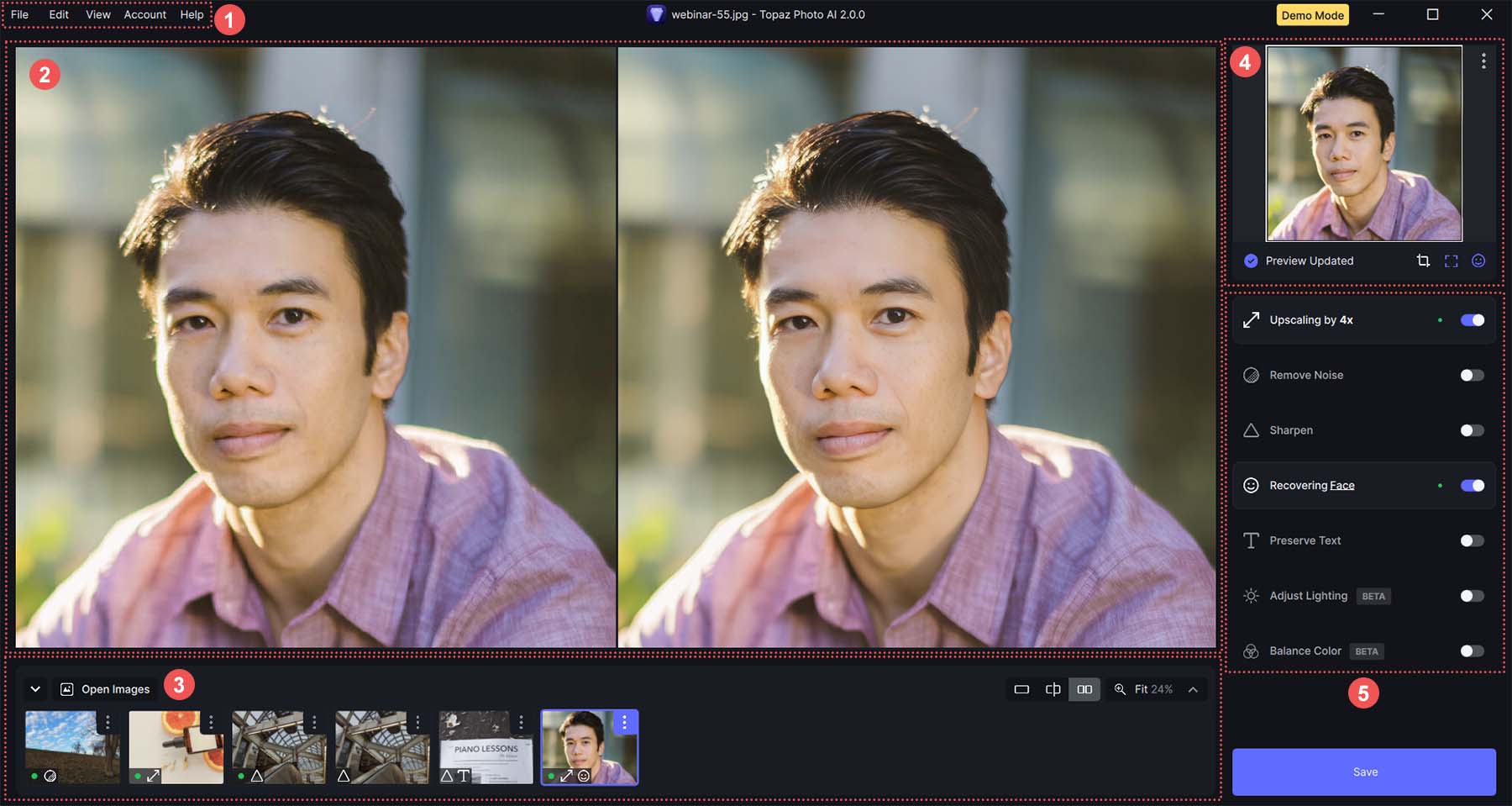
Best for: anyone who wants the cleanest possible denoise, sharpen, and upscale and doesn’t mind paying once.
Topaz folded its old DeNoise, Sharpen, and Gigapixel engines into one desktop app with an Autopilot that picks settings for you. It runs locally, so large files never leave your machine.
What it nails
• Class-leading noise reduction and detail recovery. Reviewers routinely rank its models at the top.
• Upscaling for big prints and heavy crops, with a Recover Faces option for portraits.
• Local processing (good for privacy) and a one-time license in a subscription-heavy market.
• Works standalone or as a plugin for Lightroom and Photoshop.
Where it struggles
• It’s slow. A large 4x upscale can take several minutes, and it’s resource-hungry.
• Lean on it too hard and it can over-smooth or add artifacts. Dial the sliders back.
• Free updates only cover the first year after a one-time purchase, and it’s weak at colorizing.
• It’s an enhancer, not a full editor or photo organizer.
| Best for | Highest-quality denoise, sharpen and upscale |
| Platform | Windows, macOS (desktop; also a Lightroom/Photoshop plugin) |
| Pricing (approx.) | ~$199 one-time (first year of updates); subscription/credit options also exist |
| Standout | Gigapixel-grade upscaling + Recover Faces, all processed locally |
| Watch-outs | Slow on big jobs; can over-smooth; updates lapse after year one |
| Developer / API | Desktop-first; cloud credits exist, but web APIs are easier to automate |
Real-world fit: noisy high-ISO wildlife or wedding frames, and low-resolution scans you need to print larger.
Adobe Lightroom + Photoshop: AI inside the workflow you already use

Best for: photographers who want strong AI enhancement without leaving their editing and organizing workflow.
Adobe baked capable AI into the apps pros already live in. Lightroom’s Denoise and Super Resolution, plus Photoshop’s Generative Fill, Expand, Remove, and Generative Upscale, cover most enhancement needs.
What it nails
• Denoise that rivals dedicated tools and is non-destructive. It now lives in the Detail panel, with no separate DNG step.
• Super Resolution roughly doubles linear resolution while holding detail surprisingly well.
• A seamless Lightroom-to-Photoshop round-trip and best-in-class cataloging.
• Constant updates, and nothing extra to buy if you already subscribe.
Where it struggles
• Subscription only: there’s no perpetual license, and “subscription fatigue” is real.
• Generative features lean on the cloud: they need internet and can crawl on older machines (a strong GPU and plenty of RAM help).
• Generative Fill and Expand consume generative credits, and many photographers feel Adobe prioritizes flashy AI over core speed and stability.
| Best for | Pros who want enhancement inside a full edit/organize workflow |
| Platform | Windows, macOS, iOS, web |
| Pricing (approx.) | Subscription from ~$10/month (Photography plan: Lightroom + Photoshop + cloud storage) |
| Standout | Non-destructive AI Denoise and Super Resolution; Generative Fill/Expand/Remove |
| Watch-outs | No one-time license; cloud-dependent generative tools; generative credits |
| Developer / API | Photoshop/Lightroom SDKs and a Firefly API exist (heavier to integrate) |
Real-world fit: working pros and high-volume shooters who already manage everything in Lightroom.
Remini: one-tap rescue for faces and old photos
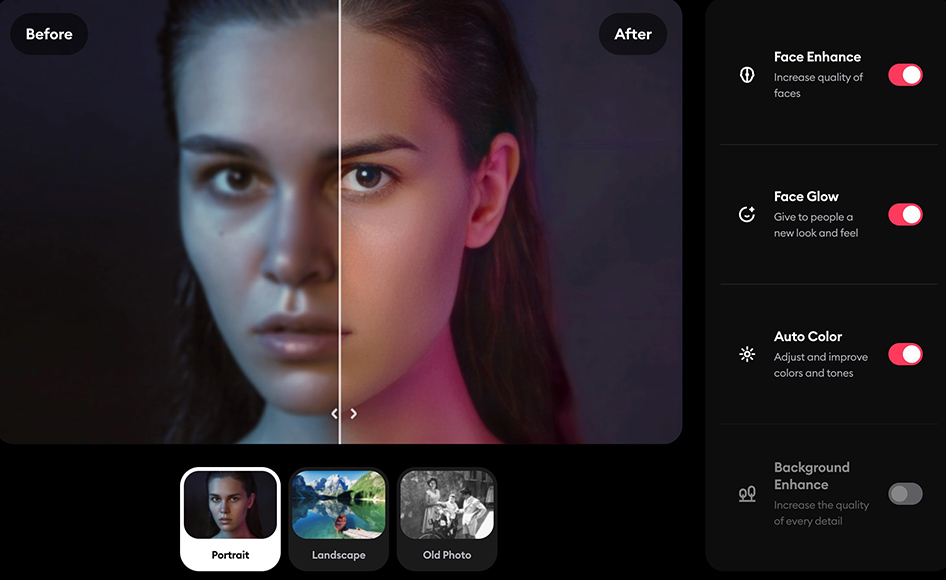
Best for: fixing old, blurry, or low-res photos fast, with zero skills required.
Built by Bending Spoons, Remini is the upload-tap-done option. It’s especially strong on portraits and degraded prints, and it works on phone and in the browser.
What it nails
• Genuinely impressive automatic face enhancement and old-photo restoration in seconds.
• Colorizing black-and-white shots, denoising, unblurring, and enlarging, all hands-off.
• No learning curve, and a polished mobile experience.
Where it struggles
• One-size-fits-all processing with little control; it can over-smooth skin and give faces that plasticky “AI” look.
• Free exports are watermarked and limited, and paid plans (often billed weekly) add up quickly.
• It’s an enhancer, not an editor (no layers, masks, or real retouching), and results vary shot to shot.
| Best for | One-tap fixes for faces and old/blurry photos |
| Platform | iOS, Android, web |
| Pricing (approx.) | Free with daily credits (watermarked); paid from ~$7/week, cheaper annually |
| Standout | Excellent automatic face enhancement and old-photo restoration |
| Watch-outs | Little control; can look “AI”; weekly billing adds up; not a full editor |
| Developer / API | No public API |
Real-world fit: a box of faded family prints, or sharpening one blurry selfie for social media.
Luminar Neo: creative editing without a subscription
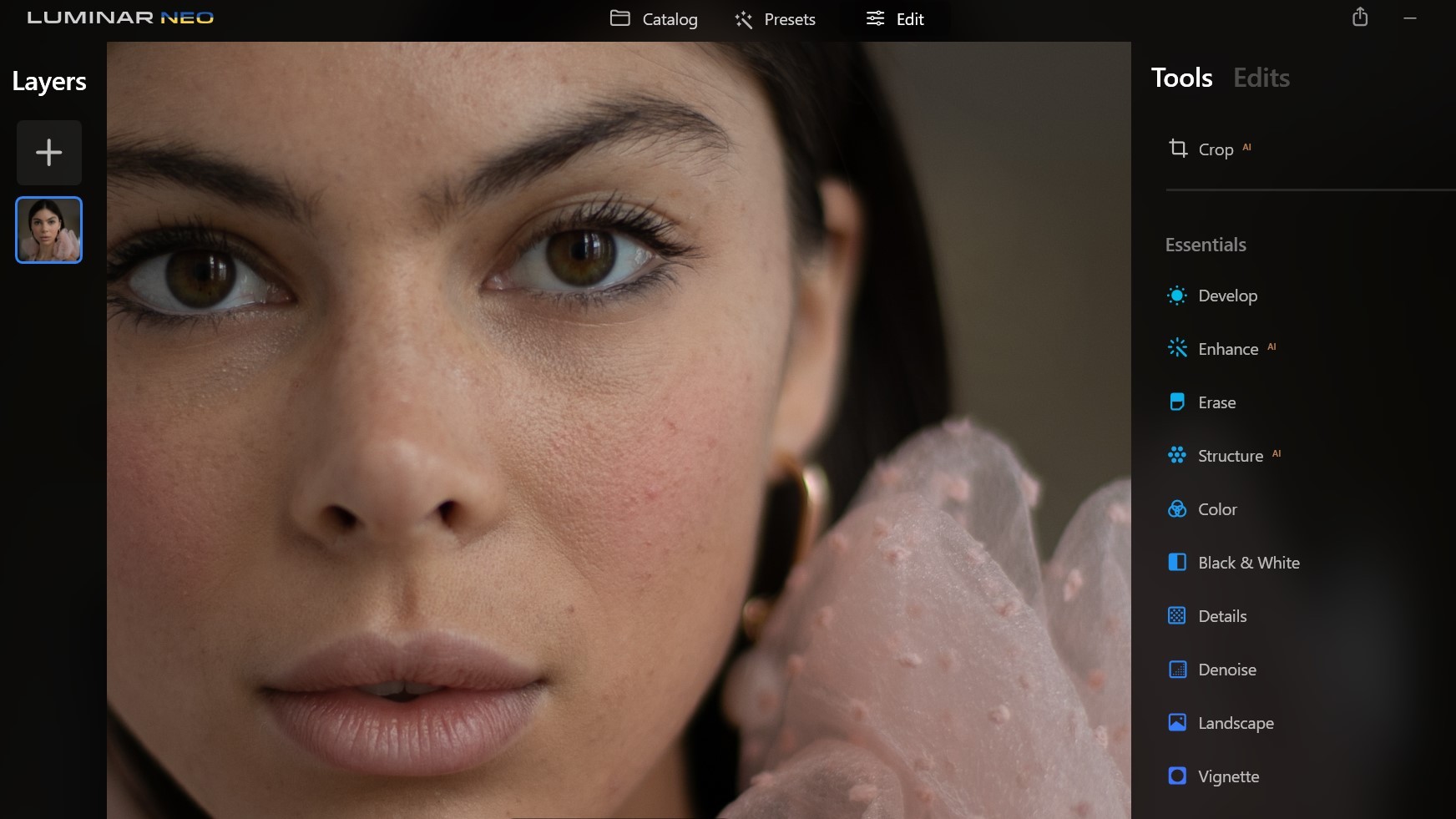
Best for: creative landscape and portrait edits with a gentle learning curve and a one-time price.
Skylum’s editor leans on AI for atmosphere and retouching: sky replacement that relights the whole scene, portrait tools, and one-slider enhancers. It runs standalone or as a Lightroom/Photoshop plugin.
What it nails
• Best-in-class sky replacement that relights the scene to match, plus strong portrait, skin, bokeh, and atmosphere tools.
• Beginner-friendly, non-destructive, with full RAW support.
• A one-time license option (rare these days) and frequent sales.
Where it struggles
• Cataloging and file management are weak next to Lightroom.
• It needs a fast machine, and the automatic AI results often need manual tweaking.
• Generative tools run on Skylum’s servers (so they need internet), there can be occasional lag, and the pricing model keeps shifting.
| Best for | Creative landscape/portrait edits with a one-time price |
| Platform | Windows, macOS, mobile (also a Lightroom/Photoshop plugin) |
| Pricing (approx.) | One-time ~$99 to $159 by edition; subscription option exists; frequent sales |
| Standout | Sky replacement that relights the scene; rich portrait/atmosphere tools |
| Watch-outs | Weak cataloging; needs a fast PC; AI edits often need a manual nudge |
| Developer / API | No |
Real-world fit: travel and landscape photographers who want a striking result fast, and would rather buy than subscribe.
Hotpot AI: budget, variety, and the easiest automation
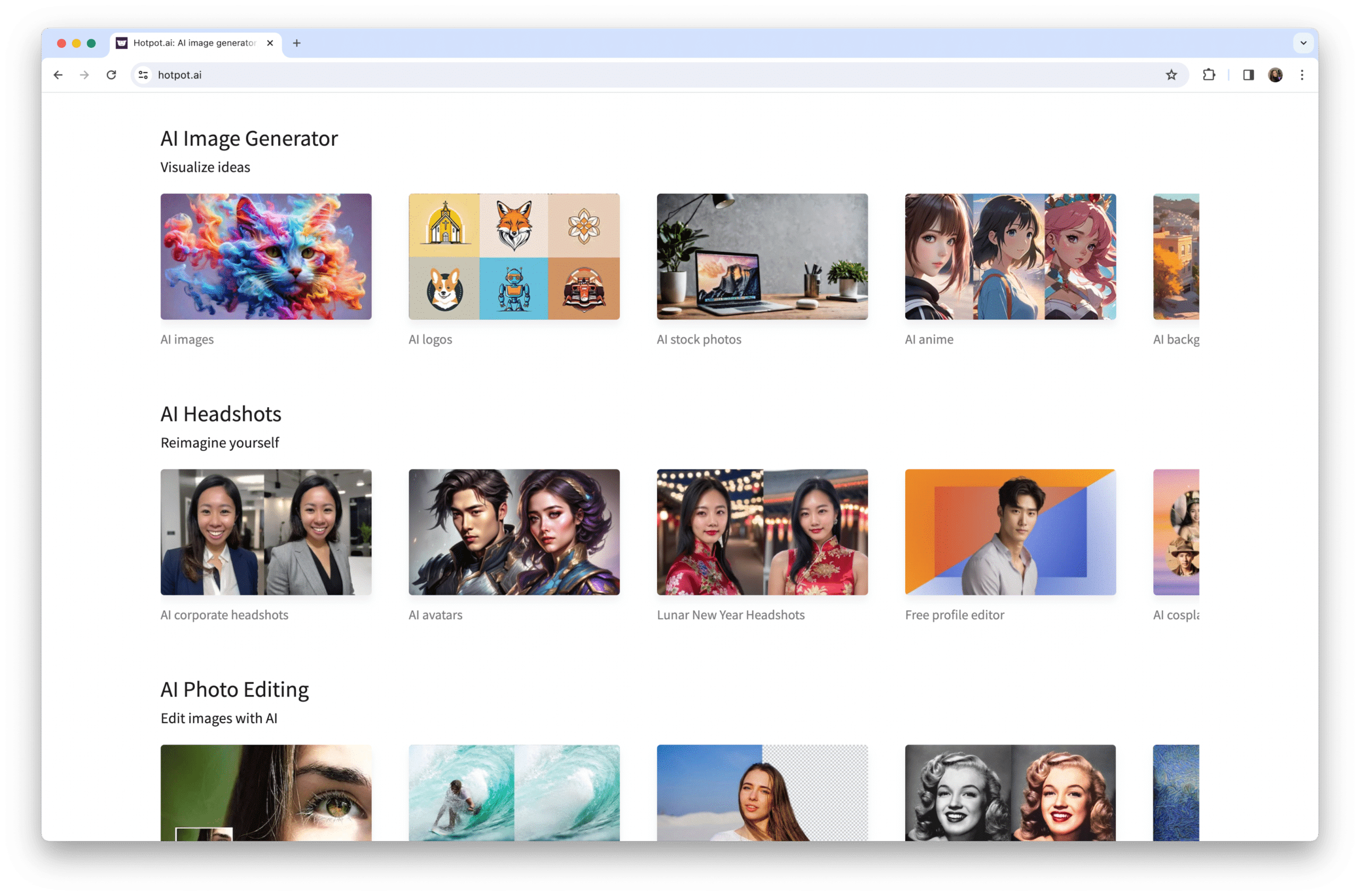
Best for: budget users and developers who need variety, bulk processing, or a real API.
Hotpot is a browser suite with no install: an upscaler (up to 10x), a restorer, a colorizer, background and object removers, a face enhancer, and headshots, all under one cheap credit system. It’s backed by well-known investors.
What it nails
• A broad toolset at low cost, with a usable free tier and per-image pricing as low as a few cents at volume.
• A real REST API plus self-hosted containers and batch processing, the easiest pick here for automation.
• Handy for e-commerce product cleanup and quick everyday restorations.
Where it struggles
• Mid-tier quality and depth; high upscales can look artificially smooth, and it’s weak on text and complex scenes.
• Free outputs are watermarked (and licensed CC BY-NC), and some users report credit-system confusion and slow support.
| Best for | Budget users and developers needing variety, bulk or automation |
| Platform | Browser (any device); no install |
| Pricing (approx.) | Free tier (watermarked); credits from ~$12 per 1,000; ~$0.02 to $0.25/image at volume; paid API |
| Standout | Upscaler (to 10x), restorer, colorizer, background/object remover, headshots |
| Watch-outs | Mid-tier depth; smoothing at high upscales; weak on text/complex scenes |
| Developer / API | Yes, REST API, self-hosted containers, and batch |
Real-world fit: a store owner batch-cleaning fifty product shots, or a developer adding an “enhance” button to an app.
What reviewers say across G2, Capterra & Trustpilot
Star ratings are a useful pulse check, as long as you know what each platform measures. G2 and Capterra are built for software buyers, while Trustpilot leans consumer and tends to attract billing and support complaints. The numbers below are approximate as of mid-2026 and shift over time.
| Tool | G2 | Capterra | Trustpilot | What the reviews boil down to |
|---|---|---|---|---|
| Topaz Photo AI | 4.7/5 | Not widely listed | ~4.0/5 | Praised for denoise and upscaling quality; common gripes are slow speed, crashes on big batches, and paid-update or credit costs. |
| Adobe Lightroom + Photoshop | 4.5/5 | 4.8/5 | Low * | Top marks on the software platforms; the low Trustpilot score is about Adobe’s billing and cancellation, not the editing tools. |
| Remini | Positive | Not listed † | Low * | Loved for one-tap face and old-photo fixes; knocked for cost, weekly billing, and occasionally over-processed faces. |
| Luminar Neo | 4.4/5 | Positive | Mixed | Liked for AI ease, sky and portrait tools, and a buy-once option; dinged for needing manual tweaks and a fast PC. |
| Hotpot AI | Positive ‡ | Not widely listed | 2.1/5 | The tools work as advertised, but refund and support complaints plus credit confusion drag the consumer score down. |
• * Trustpilot skews toward billing and customer-service experiences, so subscriptions and consumer apps often score low there even when the product itself is well-liked.
• † On Capterra, “Remini” is a different childcare-management app, not the photo enhancer, so there’s no meaningful Capterra score for the editing tool.
• ‡ G2 reviews (often from paying professionals) tend to be warmer than Trustpilot’s smaller, consumer-heavy sample.
Bottom line: treat scores as a rough signal, not a verdict. Polished desktop tools have richer listings on G2 and Capterra; lightweight web and mobile apps show up more on Trustpilot, where billing gripes dominate.
Other tools worth a look
• DxO PureRAW / PhotoLab: corrective, optics-aware denoise that many photographers rate a notch above Lightroom’s. A favorite for RAW purists; one-time or subscription.
• Let’s Enhance: a web upscaler with an API, popular for e-commerce and simple programmatic upscaling.
• BeArt AI: mainly an online face-swap suite that also offers enhancement and restoration with clean, watermark-free output. Useful, but face-swapping raises consent and deepfake questions. Only use it with permission.
• Honorable mentions: Pixelcut and VanceAI (web, e-commerce-friendly) and Aiarty (a one-time desktop enhancer) are all worth a trial run.
For developers: building enhancement into your app
Most pro desktop tools (Topaz, Luminar, the Adobe apps) are GUI-first. For automation at scale, reach for web/API services.
Integration patterns
• The typical flow is asynchronous: send the image (often as a URL) with an API key, poll the task until it’s ready, then download the result. Build in retries, timeouts, and backoff. Upscaling and restoration can take seconds to minutes.
• Watch input size limits and supported formats. Fix orientation and crop away frames or desktops before upload for noticeably better results.
• Budget per image and cache aggressively. Dedupe identical inputs, and consider a cheap model for thumbnails with a better one reserved for hero images.
Trust and privacy
• Check retention. Some services delete images right after processing (Hotpot states it keeps photos only as long as needed); for sensitive user content, prefer clear data terms, self-hosting, or on-device processing.
• Get user consent, especially for faces. Because AI can hallucinate detail, add human review before publishing enhanced faces, and never auto-enhance ID, journalistic, or evidentiary images.
The self-hosting option
• If you need full control and no per-image fees, many SaaS tools are built on open models you can run yourself, for example Real-ESRGAN and SwinIR for upscaling, or CodeFormer and GFPGAN for faces. More setup, but your data stays put.
How to choose
Match the tool to your workflow and how much control you want.
| If this is you… | Start with |
|---|---|
| You want the cleanest denoise/sharpen/upscale and don’t mind paying once | Topaz Photo AI |
| You already live in Lightroom and Photoshop | Adobe’s built-in Denoise, Super Resolution and Generative tools (add Topaz for the hardest cases) |
| You just want to fix old or blurry family photos, fast | Remini (or Hotpot on a budget) |
| You want creative landscape/portrait edits and a one-time price | Luminar Neo |
| You need variety, bulk, or a true API | Hotpot AI (or Let’s Enhance) |
| You care most about RAW noise quality | DxO PureRAW / PhotoLab |
| You need privacy and no per-image fees at scale | Self-hosted open models (Real-ESRGAN, CodeFormer) |
Tips to get better results
• Enhance your keepers, not the whole gallery. It saves time and avoids a uniform “AI look.”
• Order matters: denoise first, then sharpen, then upscale.
• Don’t over-upscale. 2x usually looks natural; pushing 8 to 10x invites mush and artifacts.
• Use the sliders. Autopilot is a starting point. Back off face and skin smoothing for realism.
• Always keep the original file, and export a copy.
• Zoom to 100% and check faces, hair, text, and edges for invented detail before you publish or print.
Limitations and honest cautions
• Invented detail: enhanced images are interpretations, not forensic truth.
• Uncanny faces: heavy face recovery can subtly change identity or expression.
• Wrong contexts: avoid AI enhancement on medical, scientific, legal/evidentiary, or journalistic images where accuracy is non-negotiable.
• Consent and likeness: get permission before enhancing or altering other people’s photos, and be transparent that an image was AI-processed.
• Copyright and licensing: free tiers may watermark your outputs or license them non-commercially (for example, CC BY-NC). Check terms before commercial use.
• Privacy: uploading personal photos to a cloud service means trusting its data handling. Read the policy, or process locally.
Final verdict
There’s no single “best” AI photo enhancer, only the best one for your workflow and how much control you want. All five here are genuinely good at what they set out to do; the trick is matching the tool to the job in front of you.
Want the cleanest possible results and don’t mind a one-time spend? Topaz Photo AI is the quality benchmark. Already editing in Adobe? You may not need anything else. After effortless rescues of old or blurry photos? Remini. Prefer a creative editor you buy once? Luminar Neo. Need variety, volume, or an API to build on? Hotpot AI.
| If you want… | Our pick | Why |
|---|---|---|
| The best possible image quality | Topaz Photo AI | Top-rated denoise, sharpen and upscale, processed locally and bought once. |
| AI inside the workflow you already use | Adobe Lightroom + Photoshop | Strong Denoise and Super Resolution without leaving the editor pros rely on. |
| Fast, no-skill fixes for old or blurry shots | Remini | One-tap face and photo restoration that just works, right on your phone. |
| Creative edits without a subscription | Luminar Neo | Standout sky replacement and portrait tools for a one-time price. |
| Variety, bulk, or an API to build on | Hotpot AI | A whole suite cheaply, plus a real REST API and batch processing. |
If you remember only three things: try the free trial on your own images first, judge the results at 100% zoom (especially faces), and always keep the original.