
Taking a screenshot on Windows means capturing whatever is on your screen as an image: the full display, a single window, or just the part you drag a box around. It is one of the most useful everyday skills on a PC, the quick way to save a receipt, send an error message to support, grab a chart from a report, or keep a confirmation number you might need later.

Windows gives you several built-in ways to do it, and none of them need extra software. The right one depends on what you want to capture and what you plan to do next: copy it quickly to paste somewhere, save it straight to a file, record a short clip instead of a still, or pull the text out of the image.
This guide walks through every method on Windows 10 and 11, starting with the single shortcut that handles most situations. You will see how to capture a specific window or a menu that keeps disappearing, exactly where each screenshot is saved, and what to do when the Print Screen key seems to stop working. Everything reflects how Windows 11 behaves in 2026, including the recent change to what Print Screen does by default.
The Quick answer
Press this: Win + Shift + S Your screen dims, a small toolbar appears at the top, and you drag a box around whatever you want. The capture lands on your clipboard. Paste it anywhere with Ctrl + V, or click the preview that pops up to crop, mark up, and save it. That one combination handles most real-world screenshots. Everything below is for the cases where you want something more specific. |

One feature, billions of users, no manual
The numbers explain why “how do I screenshot again?” is still typed into search bars every day. The audience is enormous, the tooling keeps growing, and the defaults shift under everyone’s feet.
~66.6% of desktop computers worldwide ran Windows in early 2026 (StatCounter), still the dominant desktop platform by far. | 7+ distinct built-in ways to capture the screen in Windows 11, from a classic clipboard grab to OCR and screen recording. | Oct 2025 end of support for Windows 10. Windows 11 now runs on most Windows PCs, which is why its newer capture behavior matters. |
So here is the whole toolkit, organized not by how each method is built, but by what you are actually trying to capture.
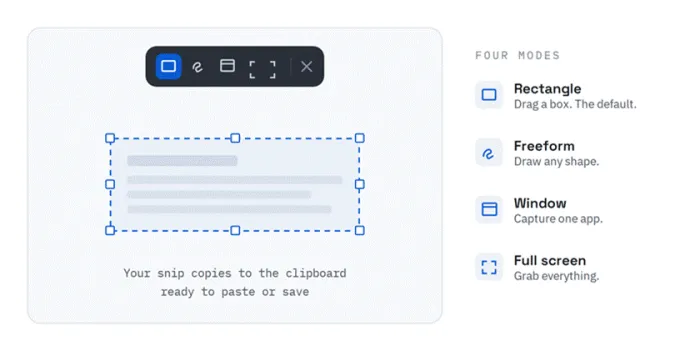
Anatomy of a snip: the Win + Shift + S overlay and its four capture modes.
Every built-in method, at a glance
Skim this once and most of the article becomes optional. The column that matters most is where it lands, because it answers the question that trips up nearly everyone: did this become a file, or is it sitting invisibly on my clipboard?
| Method | What it captures | Where it lands | Best for |
|---|---|---|---|
| Win + Shift + S | Region, window, or full screen | Clipboard (or save) | Everyday captures you’ll paste or edit |
| PrtScn | Whole screen, or opens the overlay | Clipboard | The classic reflex |
| Alt + PrtScn | The active window only | Clipboard | One app, cleanly |
| Win + PrtScn | The entire screen | Pictures > Screenshots | Hands-off, saved automatically |
| Snipping Tool app | Region, window, or full, with a delay timer | Your choice | Menus and tooltips that vanish |
| Win + Shift + R | A screen recording (video) | Videos > Screen Recordings | Showing, not telling |
| Win + G | Screen grabs and game clips | Videos > Captures | Games and full-screen apps |
| Vol Up + Power | Entire screen (Surface, tablet) | Pictures > Screenshots | Devices with no keyboard |
Pick the one that fits the moment
Grab exactly the part you want
Win + Shift + S is the one to memorize. The screen dims, the toolbar appears, you drag a box. Choose Rectangle, Freeform, Window, or Full screen, then crop or annotate from the preview.
Saves to: Clipboard, then anywhere you paste. (Snip & Sketch is now part of this tool.)
The whole screen, saved automatically
Win + PrtScn flashes the screen once and you’re done. A timestamped PNG drops straight into your Screenshots folder. No pasting. Best when you want to fire off several captures fast.
Saves to: Pictures > Screenshots. On laptops, add Fn if Print Screen shares a function key.
Capture a single window cleanly
Alt + PrtScn copies only the active window, with none of the desktop clutter around it. Click the window first, press the combo, then paste.
Saves to: Clipboard.
Print Screen, and what changed in Windows 11
PrtScn silently copied the full screen to your clipboard for two decades. In Windows 11 it now often opens the Snip overlay instead, which surprises a lot of people. You decide which behavior you want.
Switch it: Settings > Accessibility > Keyboard.
Capture a dropdown or tooltip before it disappears
Menus and tooltips close the instant you press a key. Open the Snipping Tool app, set a 3, 5, or 10 second delay, click New, then open the menu. The timer fires while it’s still on screen.
The fix for: right-click menus, hover tooltips, dropdowns.
Record the screen instead
Win + Shift + R opens the same overlay, but for video. Select an area, hit Start, then Stop. Turn the microphone on to narrate a walkthrough, and open the result in Clipchamp to trim or caption it.
Saves to: Videos > Screen Recordings.
Screenshots while gaming
Win + G opens the Xbox Game Bar, which has its own capture widget for grabs and clips and stays out of the way until you call it. Handy when desktop shortcuts feel awkward inside a game or full-screen app.
Saves to: Videos > Captures.
On a Surface or tablet
No physical Print Screen key? Press Volume Up and Power together and the full screen saves like a phone screenshot. A Surface Pen can also open the Snipping Tool.
Saves to: Pictures > Screenshots. No keys at all? Win + Ctrl + O opens the On-Screen Keyboard.
The question everyone asks
Where do my screenshots actually go?
This single confusion causes more frustration than any shortcut. The crucial split: some methods create a file on disk, and some only copy to the clipboard, a temporary slot that’s overwritten the next time you copy anything and emptied when you restart. A clipboard capture you never paste or save is simply gone.
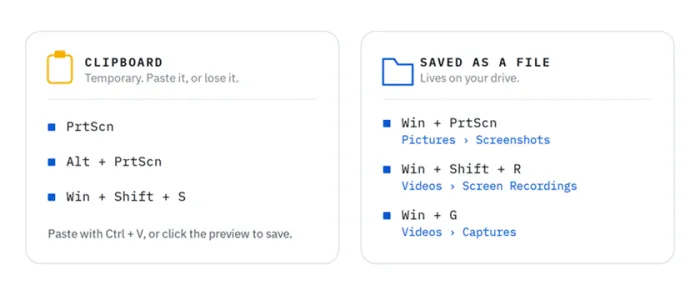
The clipboard versus the drive: the one distinction behind most “where did my screenshot go?” moments.
• Clipboard (temporary): PrtScn, Alt + PrtScn, and Win + Shift + S start here. Paste with Ctrl + V or click the preview to save.
• Pictures > Screenshots: auto-saved PNG files from Win + PrtScn and the Surface gesture.
• Videos > Captures: screenshots and clips from the Xbox Game Bar.
• Videos > Screen Recordings: videos recorded with Win + Shift + R.
Lost a capture? Open Pictures > Screenshots and sort by date, or search your drive for *.png filtered by most recent. Better still, turn on clipboard history (below) so your grabs stop being a one-shot affair.
The useful tools hiding in the Snipping Tool
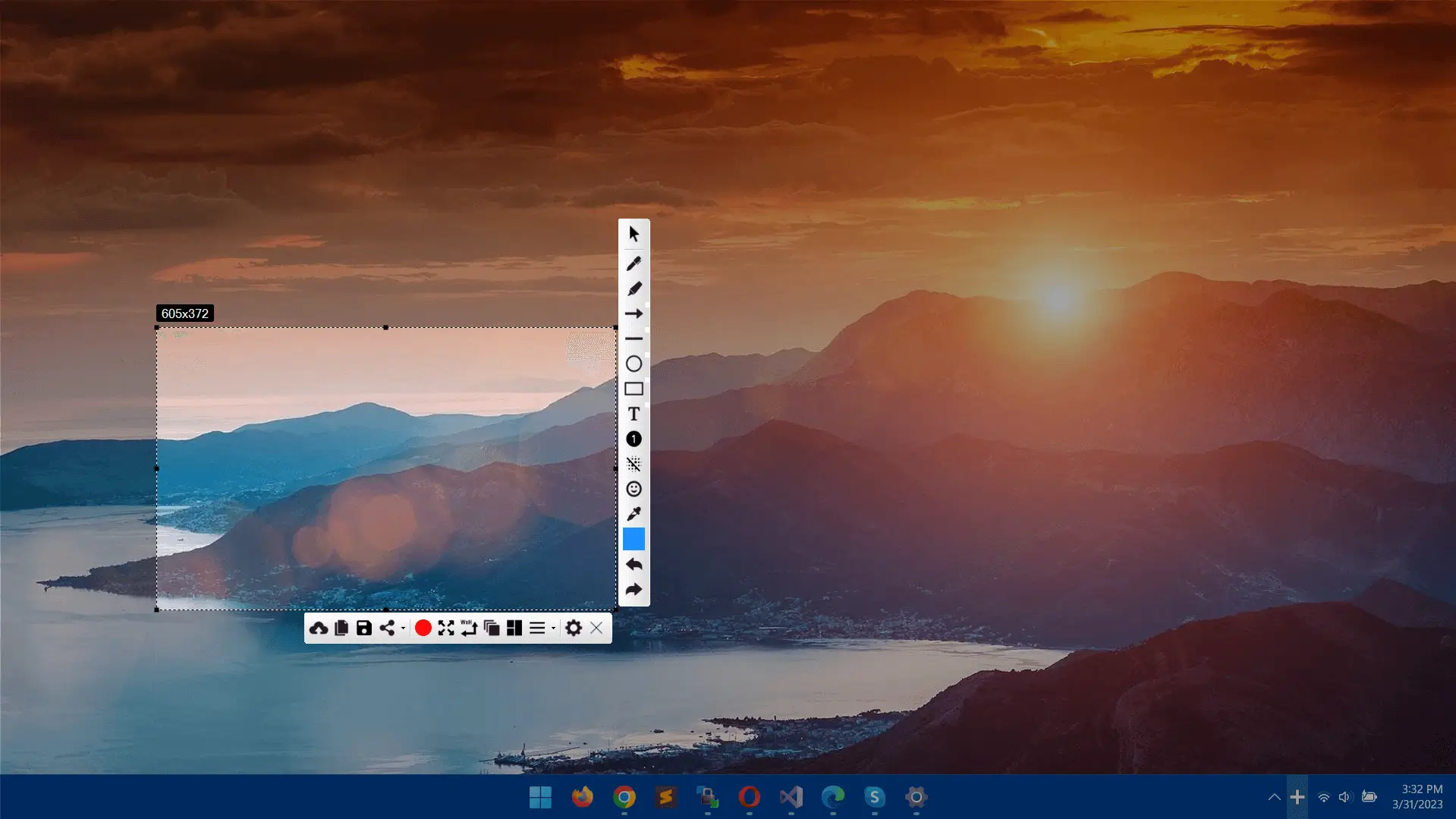
Microsoft has quietly turned the screenshot from a dumb pixel dump into a small productivity surface. Once a snip is on screen, these are the features worth knowing.
• Text Actions (OCR). Lift the words out of any image: a slide, a scanned page, or an app that refuses to let you select text. Available on Windows 11 23H2 and later.
• Quick Redact. Before sharing a bank statement or support screenshot, it can detect emails, phone numbers, and card numbers and black them out permanently, baked into the saved image.
• Annotate and crop. Pen, highlighter, shapes, and emoji, plus a crop tool with preset aspect ratios. Circle the button, ship it.
• Color picker and Perfect Screenshot. Sample any on-screen color, or let Perfect Screenshot auto-frame the content so you crop less.
Three power-user moves
• Clipboard history. Turn it on in Settings > System > Clipboard, then press Win + V for a rolling gallery of recent captures. Pin the ones you reuse so they survive a restart.
• Remap Print Screen. Prefer one key for everything? Set PrtScn to open the capture overlay under Settings > Accessibility > Keyboard.
• PowerToys for custom shortcuts. Power users can bind a capture to any key they like with Microsoft PowerToys or AutoHotkey.
When it won’t cooperate
If the shortcut does nothing
• It’s a laptop with an Fn key. Many compact keyboards put Print Screen on a function layer. Add Fn to the combination.
• Another app stole the shortcut. Screen recorders and gaming overlays sometimes grab Win + Shift + S. Close the culprit.
• The Snipping Tool is switched off. Re-enable it in Settings > Accessibility > Keyboard, and make sure Windows is up to date.
ONE HONEST GAP Windows still has no built-in way to capture a long, scrolling page, the kind that runs past the edge of your screen, in a single shot. For that you need a third-party tool. It’s the one real limitation worth knowing before you go hunting through Settings for an option that isn’t there. |
One habit worth building
Strip it back and the advice is small. Learn Win + Shift + S, remember that auto-saved shots live in Pictures > Screenshots, and switch on clipboard history. That’s the entire workflow for most people. The other six methods aren’t clutter. They’re there for the day a menu won’t sit still, a game is running, you’re on a tablet, or a still image isn’t enough. The muscle memory of one shortcut is what turns “how do I screenshot again?” into a question you stop having to ask.