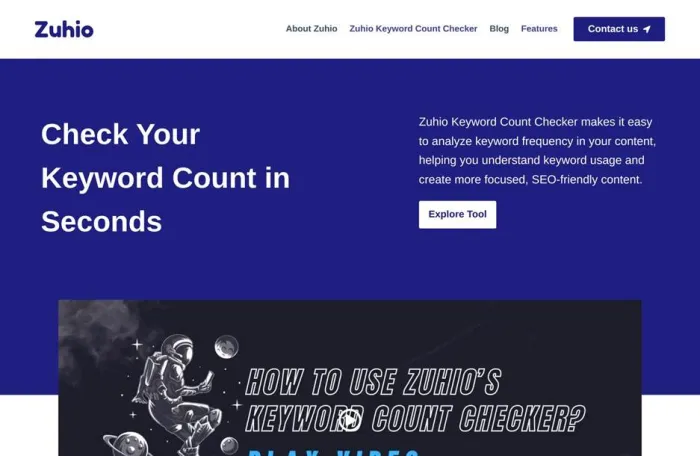
The first thing that confused me about the Zuhio Keyword Count Checker was the placeholder text in the top box. It says "Paste all the MM keywords at once." I had no idea what MM meant, so I pasted a plain keyword list, clicked the button, and nothing happened. No error, no message, not even a flicker. The button simply ignored me.
That silent failure turned out to be the most useful thing on the page, because working out why taught me what this tool is really for. It is not the generic keyword density calculator most articles describe. It is a batch checker that compares your draft against a keyword brief, the kind where every term comes with a required number of mentions.
Once I got the format right, the results came back the instant I clicked. No loading bar, no sign-up wall, no email capture. I spent an afternoon poking at it with different drafts and keyword lists; every screenshot below is from my own test runs.
QUICK ANSWER
| What it is | A free browser tool on zuhio.com that counts each listed keyword in a pasted draft and sorts every term into "Satisfied" or "Missed" against the range you set. |
| Best for | Writers and editors checking a draft against a keyword brief before delivery. |
| Not for | Keyword research, density percentages, site audits, or anything involving a live URL. |
| Cost | Free, no account needed. |
What Is the Zuhio Keyword Count Checker?
The Zuhio Keyword Count Checker is a single-purpose widget that lives directly on the zuhio.com homepage. Zuhio brands itself as a productivity site, and the checker sits in its own section under a heading that matches the tool's name.
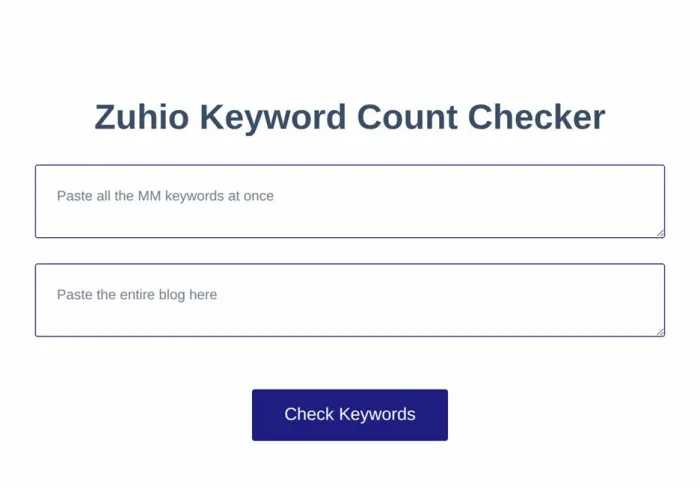
The visible interface is two boxes and one button:
| Element | What it says on the page | What it does |
| Box 1 | "Paste all the MM keywords at once" | Takes your keyword list with target ranges |
| Box 2 | "Paste the entire blog here" | Takes your full draft or article text |
| Button | "Check Keywords" | Runs the count and prints the results below |
That is the entire visible product: no settings, no exports, no tabs.
The "MM" in that placeholder almost certainly stands for min and max mentions. Every keyword you paste needs a target range next to it, and the tool judges your draft against those numbers. That detail changes what kind of tool this is, and most write-ups skip it.
What Other Reviews Get Wrong About This Tool
Before using the checker myself, I read through the reviews already ranking for it, and they disagree with each other more than you would expect for a tool this small. Here is where each one lands, matched against my own live testing.
Zuhio Keyword Count Checker Reviews at a Glance
| Review site | Overall take | How it squares with my live test |
| peacequarters.com | Glowing; fast, dependable, refreshingly simple | Speed and simplicity match; its single-keyword density flow does not |
| ailistingtool.com | Positive; a pre-publish density safety net | Density framing does not match the counts-only output |
| tycoonstory.com | Positive; the lightweight pick next to Yoast and Semrush | Fair positioning that fits the live tool |
| rankwithmahnoor.com | Positive; claims density output and URL fetching | Neither feature exists on the live page |
| webfixtool.com | Measured; helps editing, will not lift rankings alone | Closest to reality of the positive reviews |
| orevianews.com | Mixed; relays reports of the tool returning nothing | Consistent with the silent failure on bad input |
| mostlyblogging.com | Critical; got no results in testing, says skip it | Exactly what a wrong format produces; correct format worked in every run |
The split resolves cleanly once you know the input rules. A wrong paste fails silently, which reads as a broken tool if nobody told you about the Tab requirement. With the format right, the checker returned results instantly every time.
Feature claims are where the gap is widest. Several write-ups describe things that are simply not on the page:
| Claim you'll read elsewhere | What the live tool actually does |
| Shows keyword density as a percentage | No density figure appears anywhere in the results |
| Displays your total word count | No word count is shown at any point |
| Checks one keyword per pass | Handles an entire keyword list in a single click |
| Shows an error when your input is wrong | Fails silently; the button just does nothing |
| Gives an SEO score or rating | Outputs raw counts against your targets, nothing more |
| Requires you to open a separate tool page | Runs inside a section of the homepage itself |
Tools change, so some of that may describe an older version. But the version live right now outputs counts against your ranges, sorted into two lists, and nothing else. Knowing that up front saves you the confusion I had.
How to Use the Zuhio Keyword Count Checker (Step by Step)
Apart from a short video near the top of the homepage, there are no written instructions, so this is the part that matters. The format in box 1 is strict: one keyword per line, then a Tab character, then a target range.
The format looks like this:

Each line has three parts. The keyword or phrase, a single Tab, and either a range like 4-8 or an open-ended minimum like 3+ when you only care about a floor. Here is that exact format in the real tool:
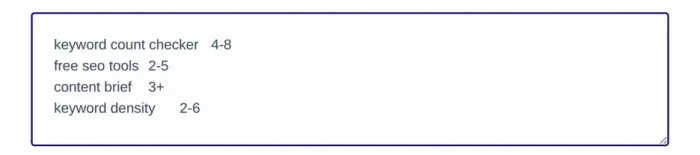
The four-keyword brief from my test run, each term followed by a Tab and its target range.
Here is the full process:
1. Open zuhio.com and scroll to the Keyword Count Checker section.
2. Prepare your keyword list with a target range for each term, separated by a Tab.
3. Paste the list into the first box.
4. Paste your entire draft into the second box, the one labeled for your blog content.
5. Click Check Keywords. Results print directly below the button, instantly.
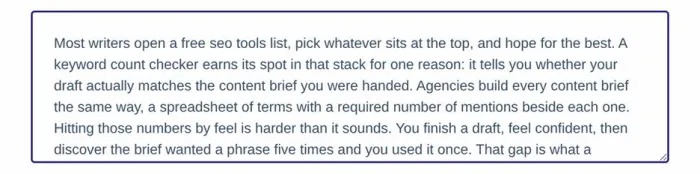
Draft pasted, ready to go. The Check Keywords button sits directly under this box.
THE SPREADSHEET SHORTCUT NOBODY MENTIONS Typing Tab characters by hand is annoying, and pasting from most text editors converts tabs to spaces, which breaks the input. The clean way to do it is a spreadsheet. Put keywords in column A and ranges in column B, select both columns, copy, and paste straight into box 1. Spreadsheets separate columns with Tab characters on copy, so the format lands correctly every time. Most agencies already deliver briefs in Google Sheets or Excel, so this slots into that workflow with a single copy-paste. |
One trap: if you click Check Keywords and nothing happens at all, your format is wrong. There is no visible error. The script fails quietly, the browser console logs it, and the page stays blank. The fix is almost always a missing Tab or a line without a range.
How to Read Your Results
The output has a fixed structure, and once you know it a result takes seconds to scan. Here is a real run from my testing, a four-keyword brief against a short draft:
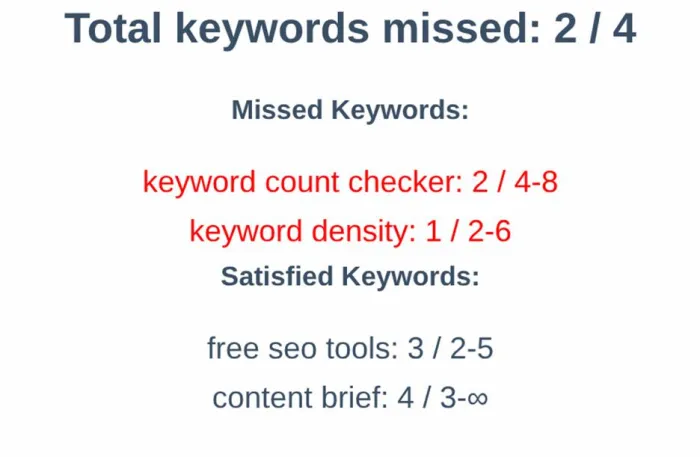
The actual output: two terms fell short of their minimums and print in red, two passed.
Missed Keywords. Any term that appears fewer times than the minimum you set. These print in red, in the format "keyword count checker: 2 / 4-8", two occurrences found, target four to eight.
Satisfied Keywords. Every term that hit its minimum. Same format, plain text; an open range like 3+ shows its ceiling as the infinity symbol visible in the screenshot.
One behavior worth understanding: only falling below the minimum gets flagged. A 4-8 target hit 15 times still sits calmly in the Satisfied list. The ceiling still prints next to your count so you can spot overshoot yourself, but it never turns red. This checker was clearly built to catch underuse rather than to police keyword stuffing. You still need your own eyes on the high side.
Small Things I Noticed While Testing
None of these are documented; they only show up when you spend time with the tool.
Matching is case-insensitive
SEO, seo, and Seo all count as the same term. For a final-edit check this is the behavior you want, since it reflects how the phrase reads on the page.
It matches inside longer words
The counter looks for your exact character sequence anywhere in the text. Type "keyword count" and it also matches inside "keyword counts," so singular targets get credit inside plurals. The flip side: a short term like "cat" picks up hits inside "category," so keep list entries specific.
Results are instant, and local
The counting script executes in your browser, which is why there is no processing delay at all. Standard caution for NDA material still applies, but the count is not queued through a server.
A hidden field does the translating
Behind the scenes, the page converts your keyword list into structured min and max pairs inside a concealed third field, rebuilt on every click. You never see it, but it explains the strict format: your list is being parsed as data, not just read as text.
Special characters can misbehave
The matching is pattern-based under the hood, so a term containing symbols like + can produce a wrong count. For normal words and phrases this never comes up, but a term like C++ is a known trap.
Everything you paste counts the same
Headings, captions, and body text are all read as one block. If you only want body-copy counts, leave your H1 out of the paste.
Who This Tool Fits (and Who It Doesn't)
Strong fit SATISFIED • A freelance writer whose clients send keyword briefs with required mention counts • An editor doing a final pass on drafts before they go to the client • An agency content lead spot-checking work from multiple writers against the same brief • A blogger who keeps a short list of target phrases and wants a fast pre-publish check | Poor fit MISSED • Keyword research, search volume, or difficulty data • Density percentages or word counts in the output • Checks on a live URL rather than pasted text • Heading, meta tag, or technical SEO analysis • Competitor gap analysis or content scoring |
If your keywords and targets already exist and you just need to verify a draft against them, this is exactly the right size of tool. If you need to figure out what the keywords should be, look elsewhere entirely.
Pros and Cons
Pros SATISFIED • Checks an entire keyword list in one click • Free with no account, email, or install • Target ranges make it a real brief-compliance check, not just a counter • Instant results, since it runs locally in the browser • Spreadsheet paste works perfectly for agency-style briefs • Case-insensitive matching mirrors how readers see the text | Cons MISSED • The strict Tab format is undocumented, and wrong input fails silently with no error shown • No density percentage or word count in the output • Exceeding the maximum never gets flagged, only underuse does • Cannot pull content from a URL, paste only • No export, save, or history of past checks • Short keywords can over-count inside longer unrelated words |
Zuhio vs Other Free Keyword Counting Options
All of these are free, so the only question is which one matches your job.
| Tool | Input | Multiple keywords | Targets or ranges | Density | Best use |
| Zuhio Keyword Count Checker | Pasted text | Yes, full list | Yes, min-max per keyword | No | Checking a draft against a brief |
| Ctrl+F in your editor | Any open document | One at a time | No | No | A quick look at a single term |
| WordCounter.net | Pasted text | Auto-detects frequent words | No | Partial | Seeing which words you repeat most |
| CheckSERP density checker | URL or text | Auto, 1 to 4 word phrases | No | Yes | Density breakdowns of a live page |
| Yoast or Rank Math | Inside WordPress | Focus keyphrase | Built-in guidance | Yes | Ongoing checks while drafting in WP |
The honest summary: Zuhio is the only one here built around per-keyword targets, and that is its entire reason to exist. If you want density math, CheckSERP does it better. But when a client hands you twelve keywords with required counts beside each one, Zuhio answers "did I hit the brief" faster than anything else on this list.
Where It Fits in a Real Writing Workflow
The way I ended up using it: write the draft with the brief open but without counting anything, because counting while writing produces stiff copy. When the draft feels done, copy the keyword columns from the brief spreadsheet into box 1, paste the draft into box 2, and click.
The Missed list becomes a short revision to-do. Work each red term into a sentence where it reads naturally, run the check once more, and stop when the missed count hits zero and nothing in the Satisfied list looks bloated against its ceiling. Two runs is typical. The whole verification step takes under two minutes, which is the entire appeal.
Final Verdict
verdict: satisfied | for brief-compliance checks After spending real time with it, my read on the Zuhio Keyword Count Checker is that it is a narrower and more specific tool than its name suggests, and better for it. This is not a density calculator wearing a new label. It is a brief-compliance checker, built for the exact moment when a keyword list with required counts meets a finished draft. The rough edges are real. The Tab format will trip up almost everyone on the first attempt, a wrong format fails without a word of explanation, and the tool stays just as silent when you blow past a maximum. I would also like a word count in the output, since the box already holds the full draft. But once the format clicked, I stopped thinking about the tool at all, which is the best thing I can say about any utility this small. Copy from the brief, paste the draft, click, fix the red lines, done. If your work involves keyword briefs with mention targets, bookmark it and use the spreadsheet trick from day one. If you need research, density math, or site audits, this was never built for you, and it does not pretend otherwise. |